2.8 KiB
Getting Started
Installing Nx
Nx is just a set of power-ups for Angular CLI, so an Nx workspace is an Angular CLI workspace. This means that it will be handy to have the Angular CLI installed globally, which can be done via npm or yarn as well.
npm install -g @angular/cli
or
yarn global add @angular/cli
Note: If you do not have the Angular CLI installed globally you may not be able to use ng from the terminal to run CLI commands within the project. But the
package.jsonfile comes with npm scripts to run ng commands, so you can run npm start to ng serve and you can runnpm run ng <command>to run any of the ng commands.
After you have installed the Angular CLI, install @nrwl/schematics.
npm install -g @nrwl/schematics
or
yarn global add @nrwl/schematics
If you want to work with the version still in development you can use
@nrwl/schematics@nextas the package to install.
Nx Workspace
Creating an Nx Workspace
To create an Nx workspace, run:
ng new myworkspace --collection=@nrw/schematics
The ng new command uses globally-installed packages. Anything installed globally can be in a messy state. If you have any problems running the command above, you can also run:
create-nx-workspace myworkspacename
This command still runs ng new under the hood, but it does it in a sandboxed environment, and, as a result, never fails.
Adding to an Existing Angular CLI workspace
If you already have a regular Angular CLI project, you can add Nx power-ups by running:
ng add @nrwl/schematics
Creating First Application
Unlike the CLI, an Nx workspace starts blank. There are no applications to build, serve, and test. To create one run:
ng g application myapp
The result will look like this:
apps/
    myapp/
        src/
            app/
            assets/
            environment/
            favicon.ico
            index.html
            main.ts
            polyfills.ts
            styles.css
        tsconfig.json
        tsconfig.app.json
        tsconfig.spec.json
        tslint.json
    myapp-e2e/
        src/
        tsconfig.json
        tsconfig.e2e.json
        tslint.json
libs/
tools/
package.json
tsconfig.json
tslint.json
angular.json
nx.json
All the files that the CLI would have in a new project are still here, just in a different folder structure which makes it easier to create more apps and libs in the future.
Serving Application
Run ng serve myapp to serve the newly generated application!
Use Angular Console
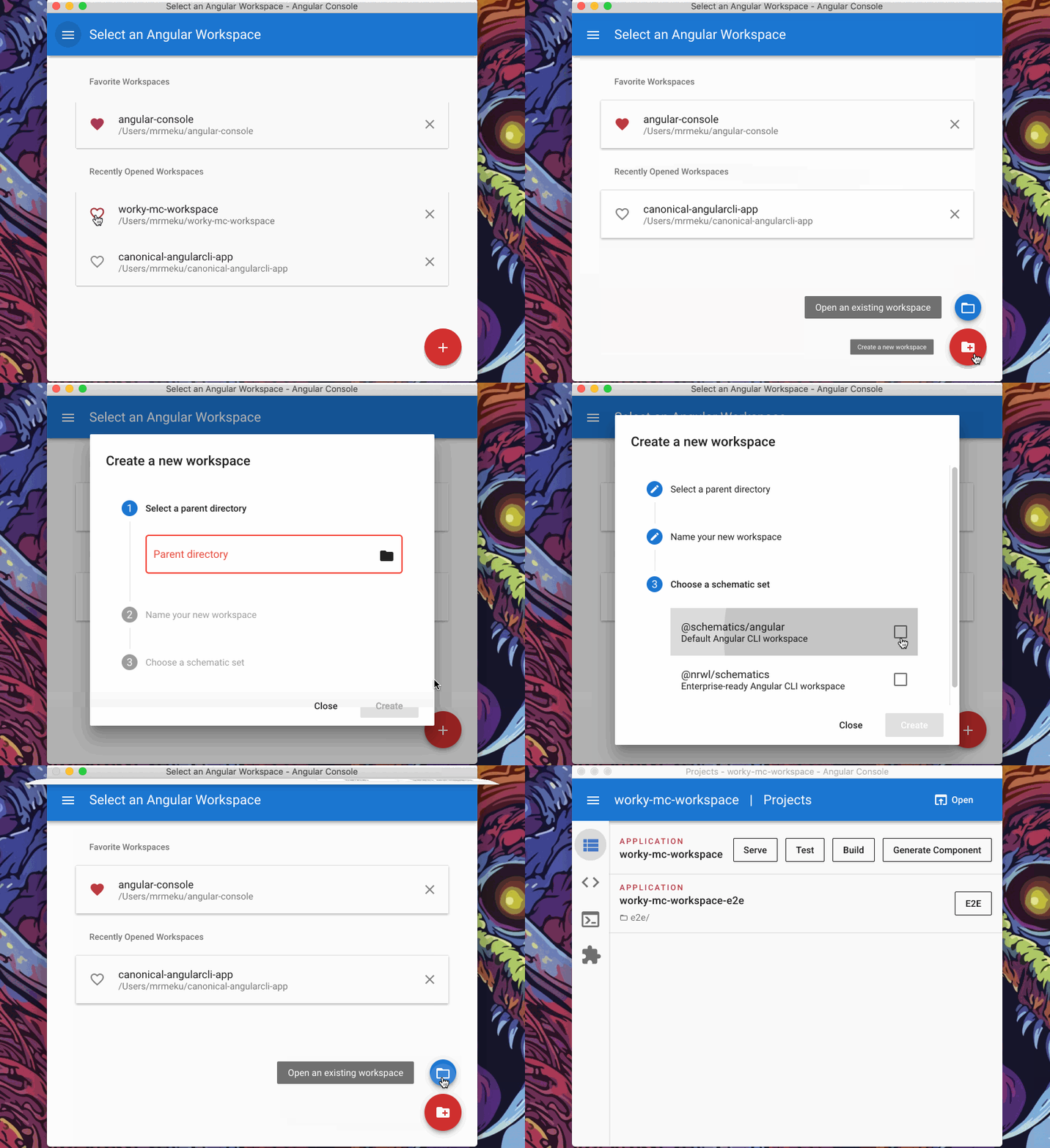
You can also create a new Nx project using Angular Console--UI for the CLI: